How to Create an Online Quiz for Employee Training: 16 Question Types and SCORM Export
Artur Yakhin
Fullstack Developer Brusnika.LMS
Quizzes are one of the most common ways to check knowledge in corporate training. They are used for onboarding new employees, testing knowledge of policies, product training, assessing course results, and running mandatory compliance checks.
However, standard multiple-choice quizzes do not suit every task. Sometimes you need to check whether an employee can put actions in the right order, classify objects, find errors in an image, fill in the blanks in a text, or match concepts.
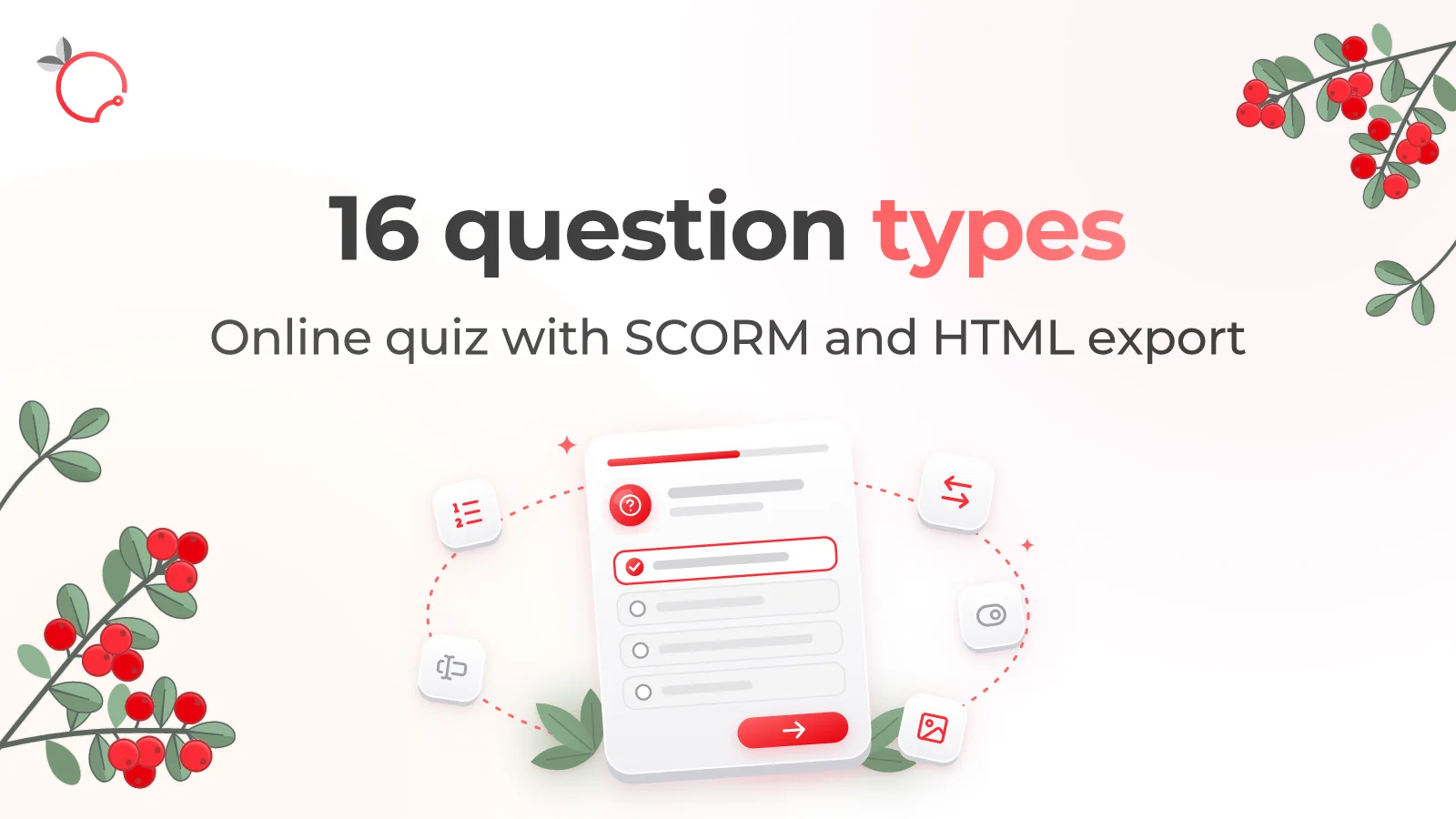
Brusnika Quiz Builder is a free online tool for building quizzes and assessments. It lets you create quizzes with 16 question types, configure scoring rules and feedback, and then export the finished quiz to SCORM 1.2, SCORM 2004, or HTML.
The tool runs in the browser and requires no signup or software installation. The quiz you create can be used in a learning management system (LMS) or launched on its own.
Why You Need an Online Quiz Builder
Online testing lets you automate knowledge checks and make learning results measurable.
In corporate training, quizzes serve different purposes:
- checking knowledge after a training course;
- assessing understanding of internal policies and instructions;
- testing knowledge of occupational health and industrial safety;
- checking knowledge of products and services;
- assessing whether employees are ready to perform work tasks;
- running pre-tests and final tests;
- checking how well new employees have absorbed onboarding materials.
It is important that testing does not have to be limited to multiple-choice questions. Different types of tasks let you check different ways of working with information.
For example, a single-choice question checks knowledge of a fact. A sequencing task checks understanding of the order of actions. Classification checks the ability to sort objects into categories. Finding items in an image checks the ability to recognize the right elements in visual information.
That is why the variety of question types becomes an important criterion when choosing a quiz builder.
Brusnika Quiz Builder: 16 Question Types
Brusnika Quiz Builder offers 16 question types. This lets you create quizzes that go beyond the standard “question with four answer options” format.
Let's look at all the available types.
1. Single choice
2. Multiple choice
3. True or false
4. Image choice
5. Matching
6. Sequencing
7. Timeline — sequence of events on a timeline
8. Sorting into categories
9. Drag and drop onto an image
10. Hotspot — finding areas in an image
11. Fill in the blanks
12. Text answer
13. Multitext — several text answers
14. Labeling — captions for image areas
15. Highlight — selecting text fragments
16. Numeric answer
How to Create a Quiz in Brusnika Quiz Builder
Creating a quiz takes a few consecutive steps.
Step 1. Create a new project
Open Brusnika Quiz Builder and choose one of the options:
- create a blank quiz;
- use a ready-made sample quiz.
The sample is an information security quiz with 16 questions that demonstrates all the task types.
A blank project starts with a first single-choice question. By default, the passing score is 70%, the number of attempts is unlimited, and questions are shown one at a time with feedback right after the answer.
Step 2. Add questions
Choose suitable question types and fill in the content of each task.
You can use different formats in one quiz: for example, start with questions on terminology, then offer a classification task and a sequencing task, and finish the quiz by finding errors in an image.
You can add up to 100 questions to one quiz.
A question can have text of up to 2,000 characters, an explanation, and answer options.
Step 3. Configure scoring
Each question is given a weight from 1 to 100.
The final score is calculated as the ratio of the sum of the weights of correctly answered questions to the sum of the weights of all questions.
For example, if questions have different weights, more important tasks can have a greater effect on the final result.
For some task types, a hint about the number of correct items is also shown, for example “3 of 5 correct.” It helps the learner understand the result but does not affect the score.
Step 4. Configure attempts and feedback
You can choose from one to ten attempts or allow an unlimited number of attempts.
Two feedback modes are available:
Right after the answer. After the check, the learner sees the result and can no longer change the answer to that question.
At the end of the quiz. The learner can change answers until the whole quiz is submitted, and then receives the final result.
For each question you can add:
- a message for a correct or incorrect answer;
- an explanation of the task;
- additional information that helps the learner understand a mistake.
The feedback text can contain up to 500 characters, and the explanation up to 2,000 characters.
Step 5. Configure how questions are displayed
There are two ways to take the quiz:
- one question per screen with “Back” and “Next” buttons;
- all questions on one page with a single “Finish quiz” button.
You can also turn on shuffling of questions and answer options. The shuffle order is deterministic and changes from attempt to attempt.
Step 6. Export the quiz
When you finish, you can export the quiz in three formats:
- SCORM 1.2;
- SCORM 2004;
- HTML.
The SCORM package sends the final score, the completion status, and data on individual questions to the LMS through the SCORM interactions mechanism.
This lets you use quizzes in learning management systems that support the corresponding standards.
When launched without an LMS, the progress state is saved in the browser. In this case, the SCORM interactions answer log is not kept.
How to Use Quiz Builder in Corporate Training
The variety of question types lets you use the tool for different training areas.
Checking knowledge after a training course
After a course on a product, a technology, or an internal policy, you can create a final quiz with questions of different types.
For example, an employee should not only recall product characteristics but also match them to customer needs, determine the right order of actions, and choose a suitable solution.
Occupational health and industrial safety
To check knowledge of safety requirements, you can use:
- selecting the right images;
- finding hazardous areas in a photo;
- sorting objects into categories;
- putting actions in the right sequence;
- questions with one or several correct answers.
Product and sales training
A quiz can include tasks on matching product characteristics and benefits, classifying customer needs, choosing a suitable offer, and knowing product features.
Checking knowledge of policies and instructions
The Highlight and fill-in-the-blanks formats let you check understanding of text documents. Sequencing and classification questions help assess knowledge of procedures.
Checking professional knowledge
Numeric tasks, text answers, and multiple input fields let you check terminology, calculations, and knowledge related to a specific professional activity.
How Quiz Builder Differs from Regular Testing in an LMS
Many learning management systems have built-in quiz builders. They are convenient when you need to quickly create a knowledge check inside the LMS.
Brusnika Quiz Builder is designed for creating a standalone quiz document with an extended set of interactive question types.
Brusnika Quiz Builder offers 16 question types, including visual tasks, text fragment selection, timelines, multiple text fields, and placing objects on an image.
After export, the quiz is a self-contained SCORM package. It can be used in different LMSs that support the corresponding SCORM versions, without having to recreate the questions inside each system.
Brusnika Quiz Builder and Other Quiz Builders
When choosing an online quiz builder, it is important to consider not only the number of questions but also the options for presenting them, configuring scoring, and exporting.
Brusnika Quiz Builder is focused on creating standalone electronic quizzes with a variety of task types and export to SCORM.
Its features:
- 16 question types;
- up to 100 questions in one quiz;
- passing score settings;
- attempt limit settings;
- shuffling of questions and options;
- feedback and explanations;
- export to SCORM 1.2, SCORM 2004, and HTML;
- works without signup or software installation.
At the same time, the current version has no question bank, no random selection of a set number of questions from a bank, and no quiz timer.
Flashcards, scales and ratings, matrix questions, and audio and video questions are also not implemented yet.
Compatibility and Technical Details
Brusnika Quiz Builder runs in the browser.
The quiz you create can be exported to SCORM 1.2, SCORM 2004, or HTML.
The SCORM package sends:
- the completion status;
- the final score;
- completion data;
- progress;
- answers to individual questions through the interactions mechanism.
SCORM 2004 uses separate success and completion indicators. This makes it possible to distinguish the case where a learner finished the quiz but did not reach the passing score.
The following limits apply to quizzes:
- up to 100 questions;
- question text and explanation: up to 2,000 characters;
- text of one answer option: up to 500 characters;
- image size: up to 10 MB;
- total project media: up to 300 MB.
Taking quizzes is adapted for mobile screens. The editor itself is designed for use on a computer.
The player supports 18 interface languages, including Russian, English, German, French, Spanish, Chinese, Japanese, and Arabic.
Frequently Asked Questions
Try Brusnika Quiz Builder
If you need to create a quiz to check employee knowledge, run a final assessment after a course, or support self-paced learning, try Brusnika Quiz Builder.
Use 16 task types, add feedback, configure scoring, and export the finished quiz to SCORM or HTML.
Brusnika Quiz Builder — create interactive quizzes for e-learning for free, right in your browser and without signup.
Other Brusnika Authoring Tools:
- Longread Builder — creating e-learning materials.
- Interactive — turning PowerPoint into interactive courses.
- Branching Scenarios — creating situational simulators with branching.
- Overview of all Brusnika Authoring Tools.