How to Create a Situational Simulator with Branching Scenarios
Artur Yakhin
Fullstack Developer Brusnika.LMS
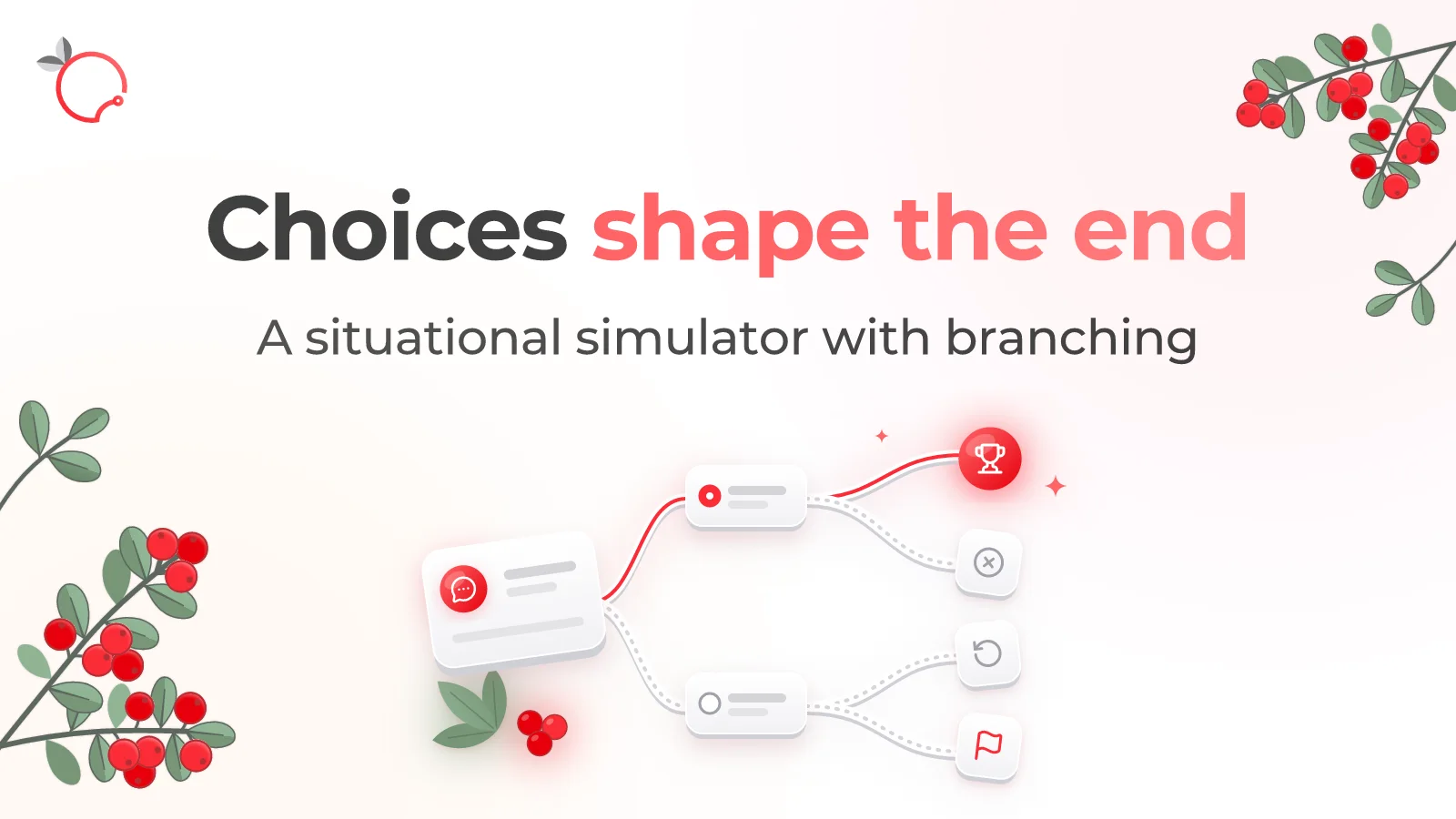
One way to make training more practice-oriented is to ask people not just to read an instruction or answer quiz questions, but to make a decision in a simulated work situation.
For example, a sales manager talks to a dissatisfied customer. A team lead chooses how to resolve a conflict in the team. A support agent decides how to respond to an unusual request. A specialist makes a decision in a situation where several conditions and possible consequences have to be taken into account.
Such learning materials are called situational scenarios, interactive scenarios, or branching scenarios.
Brusnika Branching Scenarios is a free online builder of branching learning scenarios. It lets you create interactive situations in which the learner's choices determine how events unfold. With variables, conditions, and rules, you can model the consequences of decisions and lead the user to different endings.
A finished scenario can be exported to SCORM 1.2, SCORM 2004, or HTML. The tool works in the browser and requires no registration or software installation.
What is a branching scenario
A branching scenario is a learning scenario in which the development of the situation depends on the learner's decisions.
Unlike a linear e-learning course, where all users go through the same sequence of slides, in a branching scenario different decisions lead to different continuations.
For example, imagine this situation:
A support agent receives a complaint from a customer.
The agent can:
- acknowledge the problem and offer a solution;
- try to explain why the company is not at fault;
- pass the request to another employee;
- offer compensation.
Each action can have its own consequences. Depending on the choice, the course of the situation, the state of certain indicators, and the available actions change.
In the end, the learner arrives at one of several endings and can see the result of their behavior.
This makes it possible to use scenarios to teach not only knowledge of the rules but also decision-making.
How situational learning differs from a regular quiz
A regular quiz assumes that the author has defined the correct answer in advance and the learner has to find it.
In a situational scenario, the task can be more complex.
Sometimes there is no single correct decision in a particular situation. There are several ways to act, each with its own consequences.
For example, a team lead has to choose how to respond to a conflict in the team. They can quickly make a decision on their own, hear both sides, or pass the matter to HR. Each approach can have different consequences for relationships in the team and for the results of the work.
In such a scenario, it matters not only which option the person chose but also how their choice affected the further development of the situation.
Branching Scenarios lets you create exactly this kind of learning material.
How Brusnika Branching Scenarios works
The tool is built around a map of scenes connected by transitions.
Each scene contains a description of the situation, action options, and, if needed, conditions that determine whether these options are available.
Scenes and endings
The builder provides two types of elements:
Scene — a separate episode of the situation that the learner sees. It can contain a name for the editor, a speaker name, text, an image, and a character.
Ending — the conclusion of the scenario with a specific outcome.
Endings can have three outcomes:
- passed;
- failed;
- no outcome set.
For each ending, you can configure the result the learner will see, including the score, indicators, and a description of the path taken.
A single scenario can use up to 80 scenes, including endings.
Decision options
Each scene can offer up to six action options.
An option contains:
- a label that the learner sees;
- a transition to the next scene or ending;
- effects that change variable values;
- conditions that determine when the option is available;
- a description of the consequences of the choice.
If an option has a description of consequences, the learner first reads it and then clicks the “Next” button. If no consequences are set, the transition happens immediately.
This way, you can not only show the next episode but also explain what the user's decision led to.
How to create a branching scenario
Creating a project in Brusnika Branching Scenarios consists of several stages.
Step 1. Create a scenario
Open Brusnika Branching Scenarios and create a new project.
At the start, a basic structure is generated: a first scene with two action options and two endings, with the results “passed” and “failed”.
After that, the author can expand the scenario, add new scenes, and change transitions.
Step 2. Build the scenario map
The main working tool is the visual scene map.
It shows the structure of the scenario and the connections between individual episodes.
On the map:
- cards represent scenes and endings;
- arrows show transitions between them;
- solid lines indicate transitions by answer options;
- dashed lines show automatic transitions by rules.
Cards can be moved with a mouse or a finger. When creating a transition, you can immediately add a new scene or a new ending.
This approach lets you see the overall structure of the learning situation and understand how the learner's choices affect the further development of events.
Step 3. Fill the scenes with content
For each scene, you can set:
- a name used in the editor;
- a speaker name;
- the text of the situation;
- an image;
- a character on top of the image;
- action options.
The scene text can contain up to 3,000 characters.
For example, for a sales training scenario, you can create a scene in which a manager receives an inquiry from a potential customer. The text describes the customer's need, their doubts, and the initial terms of the deal.
Then the author offers several options for how the manager can react.
Step 4. Add variables
Variables let you model changes in the state of the situation depending on the learner's decisions.
Brusnika Branching Scenarios supports two types of variables:
- numeric;
- boolean (yes/no).
You can create up to ten variables.
For example, in a customer service scenario, you can use the following indicators:
- customer satisfaction level;
- degree of trust;
- number of mistakes made;
- whether an agreed solution has been reached.
Each variable has an initial value, a minimum value, and a maximum value. If needed, it can be marked as an indicator that is visible to the learner.
After an action option is chosen, the variable values can change.
For example:
- if the agent acknowledges the problem and offers a solution, customer satisfaction increases;
- if the agent ignores the complaint, the indicator decreases;
- if the agent follows the mandatory procedure, the corresponding boolean flag is set to “yes”.
This lets you build scenarios in which decisions have a cumulative effect.
Step 5. Set up conditions and consequences
You can set availability conditions for action options.
For example, a certain option can appear only if the learner previously performed a specific action or reached a certain indicator value.
The following comparisons are supported:
- equal to;
- not equal to;
- greater than;
- greater than or equal to;
- less than;
- less than or equal to.
Conditions can be combined with the logical “AND”.
For each option, you can configure up to three conditions and up to five effects.
Effects let you increase or decrease numeric variables and set specific values.
In addition, you can set automatic transition rules in scenes. They trigger when the scene is entered, if the required conditions are met.
This way, the development of the scenario can depend not only on the last choice but also on previously accumulated results.
Step 6. Configure scoring
Brusnika Branching Scenarios provides three modes for determining the result.
On completion
Any ending reached means the scenario is completed. This option suits situations in which the decision-making process itself matters more than achieving a specific result.
By ending outcome
Success is determined by which ending the learner arrives at: “passed” or “failed”.
This is the default mode.
By score
The result is determined by the value of a selected variable. Its value is converted into a percentage of the set range and then compared with the passing score.
By default, the passing score is 70%.
You can use the best result across several attempts: replaying the scenario does not lower the best outcome achieved earlier.
Step 7. Check the scenario and export it
Before export, Brusnika Branching Scenarios checks the structure of the scenario.
The tool detects errors that may prevent the scenario from being completed:
- empty scene text;
- no action options;
- no path to an ending;
- empty option labels;
- transitions with no specified target;
- references to deleted variables;
- no ending outcome when the corresponding scoring mode is used;
- no bounds for the variable used to calculate the score.
Warnings are also shown for unreachable scenes and for options with a display condition.
After a successful check, you can download the finished package in SCORM 1.2, SCORM 2004, or HTML.
Examples of using branching scenarios in corporate training
Branching Scenarios is especially useful where employees have to make decisions, take circumstances into account, and assess the consequences of their actions.
Sales training
Create a negotiation situation with a customer.
The learner chooses how to identify needs, present the product, handle objections, and discuss the terms of the deal.
Depending on the decisions made, the customer's trust indicators and the likelihood of successfully closing the negotiation change.
Customer service and complaint handling
Offer the employee several situations of dealing with dissatisfied customers.
Depending on the chosen reaction, the course of the dialogue, the customer's emotional state, and the outcome of the interaction change.
You can model situations of conflict escalation, refusal of service, or successful resolution of the problem.
Leadership training
Branching scenarios let you model management situations:
- a conflict between employees;
- low team performance;
- the need to give feedback;
- a choice between several ways to solve a problem;
- a reaction to a broken agreement.
Such exercises help people think through the consequences of management decisions.
Information security
You can create a scenario in which an employee receives a suspicious email, message, or request to share information.
Depending on the user's actions, the scenario shows the consequences: from safe handling of the request to a potential incident.
Compliance with regulations and procedures
Simulate a work situation in which an employee has to choose the correct order of actions.
Unlike a regular quiz, here you can show the consequences of violating the sequence and the impact of decisions on the further course of the process.
How Branching Scenarios differs from a quiz
A quiz and a branching scenario solve different learning tasks.
| Criterion | Quiz Builder | Branching Scenarios |
|---|---|---|
| Main task | Test knowledge | Practice decision-making |
| Structure | A sequence of questions | A network of connected scenes |
| Answer options | Evaluated as correct or incorrect | Can lead to different consequences |
| Logic | Scoring rules | Variables, conditions, and effects |
| Result | Final score | Ending, score, and indicators |
| Type of learning | Knowledge check and reinforcement | Situational learning |
In Quiz Builder, the author defines the correct answers and scoring criteria in advance.
In Branching Scenarios, you can create situations where there is no single correct answer at each step and the result is determined by the combination of decisions.
These tools complement each other. For example, an employee first studies the learning material, then takes a quiz, and after that completes a situational exercise in which they apply the knowledge they have gained.
Limitations and technical details
Brusnika Branching Scenarios is focused on creating scenarios with text, images, decision options, and transition logic.
Before you start, keep the following limitations in mind:
- up to 80 scenes per project, including endings;
- up to six action options per scene;
- up to ten variables;
- numeric and boolean variables are supported;
- the text of a single scene is limited to 3,000 characters;
- up to five effects per option;
- up to three conditions per option or rule;
- up to five automatic transition rules per scene;
- conditions are combined with “AND”; the logical “OR” is not supported;
- video and audio in scenes are not supported;
- clicks on individual image objects and dragging objects in scenes are not implemented;
- there is no button to return to the previous scene.
Variables have value limits, and when the limit is reached, the result is capped within the set range.
The editor works on a computer, while the preview and scenario playback are adapted for different screens.
The player supports 18 interface languages, including Russian, English, German, Spanish, French, Chinese, Japanese, and Arabic.
Frequently asked questions
Try Brusnika Branching Scenarios
If you want to train employees not only in knowing the rules but also in making decisions in work situations, try creating your own branching scenario.
Simulate a dialogue with a customer, a management situation, complaint handling, or following a procedure. Add several action options, set up the consequences, and see what results the learner's decisions lead to.
Brusnika Branching Scenarios — create situational learning scenarios with forks, consequences, and different endings. Free and no registration required.
Open Brusnika Branching Scenarios
Other Brusnika Authoring Tools:
- Longread Builder — creating e-learning materials.
- Interactive — creating interactive courses based on PowerPoint.
- Quiz Builder — creating quizzes and assessments.
- Overview of all Brusnika Authoring Tools.